How to Add Face Blur in Videos Free?
 Posted By: Besty Smith
- Updated On: April 29, 2026
- Category: Blur Video Tips
Keeping your privacy online is almost a full time job these days. To protect your personal information from prying eyes, you have to take measures to conceal your identity when you post photos and videos online on websites and services.
AI face blur in video is one such measure that will come in handy if you want to keep your identity private. This blog post will introduce everything you need to know about this technology and teach you how to add face blur in videos for free. Let's dive in!
Read More: Blur Videos in Premiere Pro and An Alternative Solution | How to Blur Video in Canva: 5 Super Easy Steps
Part 1: What is AI-Based Video Blurring?
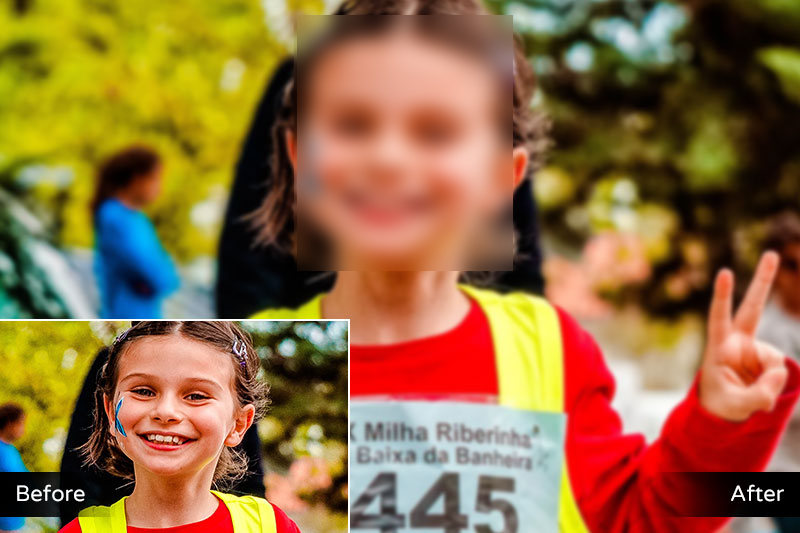
AI-based video blurring is an intelligent technology that automatically detects and blurs faces or sensitive objects in videos using artificial intelligence. It is widely used to protect privacy, ensure compliance, and enhance security—especially in scenarios such as social media sharing, surveillance footage, interviews, and public recordings.
Unlike traditional manual blurring, AI video blurring relies on advanced algorithms to recognize faces frame by frame and apply blur effects automatically. This not only saves time but also ensures consistent results throughout the entire video, even when subjects move or change angles. For privacy protection, automated face detection and blurring remain the most practical and widely used approach.
Part 2: How to Add Face Blur in Videos Free with AI?
AVCLabs Video Blur AI uses advanced AI technology to automatically detect and blur faces in videos, making privacy protection easier than ever. It analyzes each frame of your video to identify human faces under various lighting conditions and angles without manual input. This ensures that the blur stays accurately aligned even when subjects move. Furthermore, you can choose to blur all faces in the video or selectively choose specific faces.
In addition, AVCLabs Video Blur AI offers flexible blur settings. You can adjust the blur type and size as needed, making privacy protection both secure and aesthetically pleasing. Even better, the software provides new users with 3 free video blurring attempts, allowing you to experience the efficiency and convenience of AI-powered automatic blurring firsthand.
Key Features of AVCLabs Video Blur AI
- Smart object removal to erase unwanted elements from videos.
- AI-powered automatic detection for fast and easy blurring.
- Multiple blur effects and customizable stickers supported.
- Advanced face, background, and license plate blur modes.
- Maintains original video quality while applying blur effects.

Steps on How to Add Face Blur in Videos
Step 1 Import your video
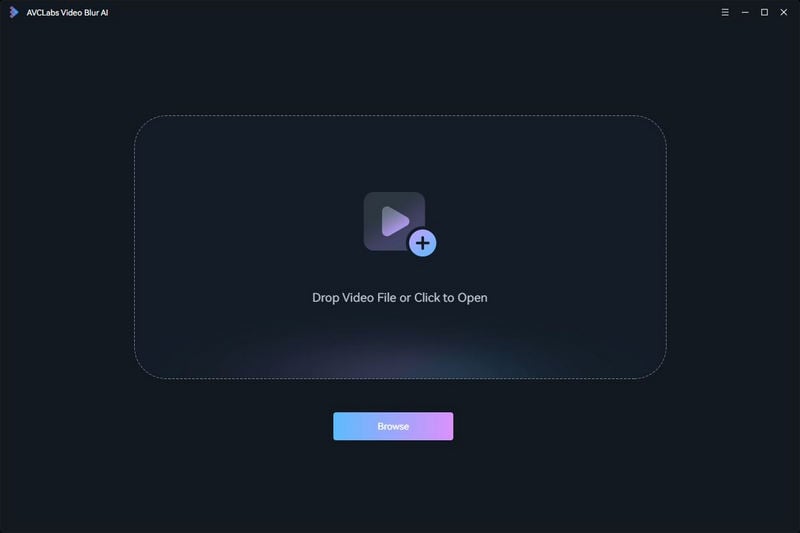
Launch AVCLabs Video Blur AI and click the Browse button to import the video you want to process to the program.
Step 2 Choose Face Blur
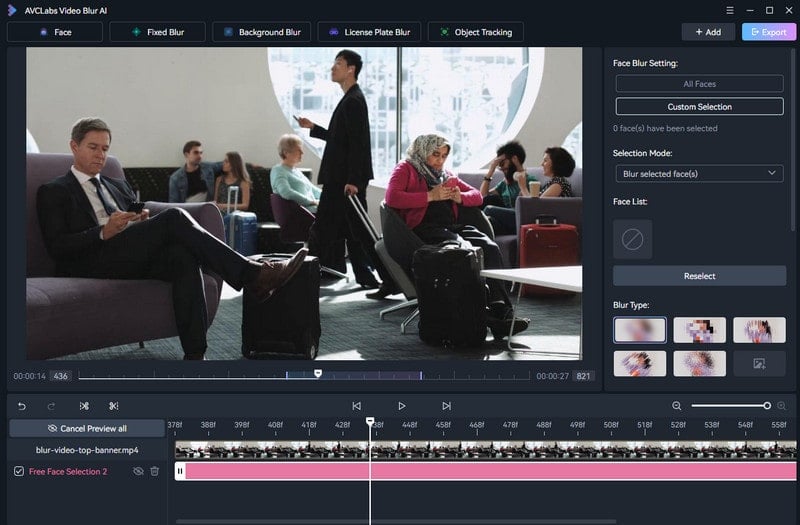
Click the Face option, and AVCLabs Video Blur AI will automatically recognize and blur all faces in the video. If you only want to blur individual faces, please select "Custom Selection".
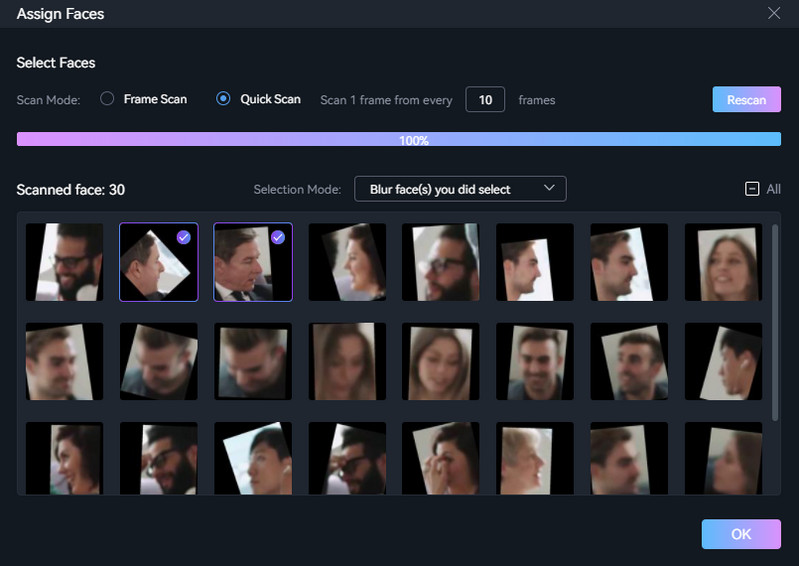
Step 3 Scan Face in Video
Click "Start Scanning" and AVCLabs Video Blur AI will automatically scan and display all faces in the video. Please select the faces you want to blur.
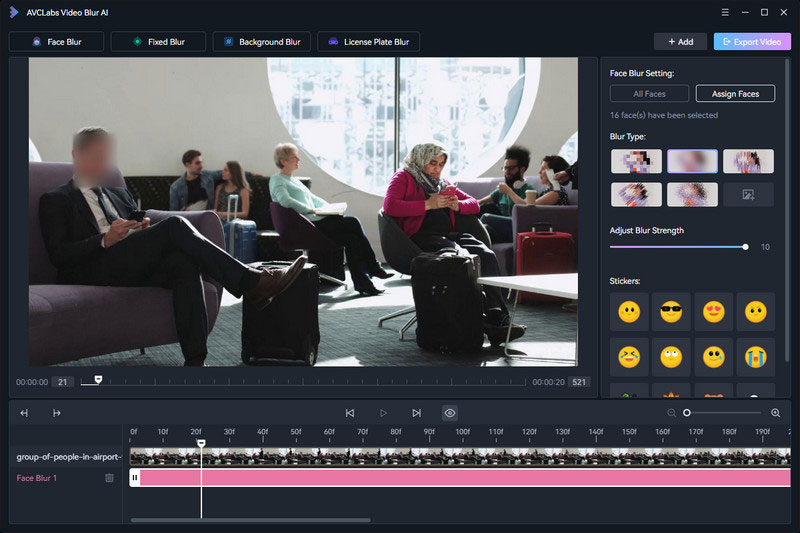
Step 4 Choose Settings and Export Video
On the right, select the relevant settings for the blur effect, such as strength, size, color, etc. Finally, click the Export Video button to start rendering the video.
FAQ About Face Blur in Video
Why is AI-based face blurring important?
In today's internet age, while you have the right to privacy, protecting your personal identity is equally crucial. Besides choosing to post images and videos without showing your face, you can also post blurred images and videos, which significantly reduces the chances of others recognizing you. With AI-based face blurring technology, you can quickly blur faces, effectively protecting your personal identity.
Are there limitations to AI-based video blurring technology?
While AI-powered face blurring technology is highly efficient for adding face blur to video, its accuracy is not 100%. If you need to protect privacy in situations that could have serious consequences, it is recommended that you manually blur faces in videos. In most cases, you can manually blur faces in images and videos using Photoshop or other image editing software. This is generally more accurate than AI-powered face blurring software.
Conclusion:
Blurring the faces in your images and videos is the most reliable way to protect your identity. If you're looking for a tool to help you blur faces in videos, AVCLabs Video Blur AI is a great option. It's easy to use and offers a number of features that make it a powerful tool for blurring faces in videos. Protect your online privacy now with its free trial.